
Add a booking widget to your clinic website
Clients who find you on Google or Instagram land on your website, not on a marketplace. The Workee widget lets them book right there, without creating an account.
Get a Demo
In short: To add online booking to a clinic website with Workee, set up your services and availability, create a booking widget for the services you want to show, copy its embed code, and paste it into your WordPress, Wix, Squarespace or Webflow page. Clients book in a few steps with no account or password, and the booking lands in your Workee calendar.
Updated
Before you start

Your services and hours
Add your services, prices, durations and which provider offers each, then set weekly availability.

Access to your website editor
You need to be able to add an embed or custom code block to a page. If someone else runs your site, send them the code.

Optional: payments
To take deposits at booking, connect Stripe or PayPal first. It works without them too.
Step by step in Workee
In this guide
- Step 1
Create a widget
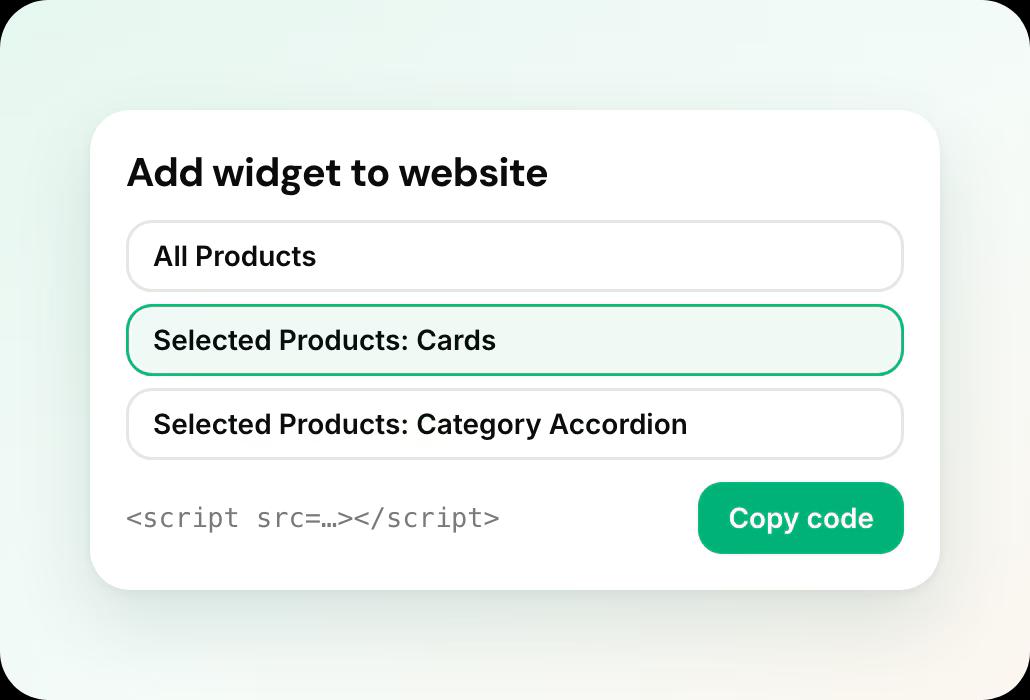
In Workee, create a booking widget and choose which services and packages it shows: everything, or only the treatments you want on that page. Pick a template and check the preview.
 Step 2
Copy the embed code
Copy the widget’s embed code. Workee shows short instructions next to it, including a guide for Wix.
- Step 3
Paste it into your website
In WordPress, Wix, Squarespace or Webflow, add an embed or custom code block where you want booking to appear and paste the code. Publish the page.
 Step 4
Add booking links where an embed does not fit
For your Instagram bio, Google Business Profile or an email, copy a direct booking link to a service instead. You can add link parameters to tell ad and campaign traffic apart.
 Step 5
Test it on your phone
Open the page on your phone and book a test appointment. The widget adapts to small screens; check that the services, times and confirmation look right.
You can make several widgets, for example one per treatment page, each with its own embed code.
What it looks like in Workee
Pick a widget, copy the code
Choose which services the widget shows, then copy the embed code and paste it into your site.
 Works in WordPress, Wix, Squarespace and Webflow
- Adapts to small screens
Related guides and pages
How to take deposits
Ask for a deposit as part of the same booking.
Appointment reminders by SMS and WhatsApp
Confirm and remind every booking from the widget.
Online booking and scheduling
Services, providers, locations and reminders.
A clinic website built for bookings
Custom design with booking, SEO and AEO set up for you.
Integrations
Stripe, PayPal, Zoom, SMS, WhatsApp and your website builder.
Workee for med spas
Booking, deposits and follow-up built for med spas.
Common questions
- Which website builders does the Workee widget work with?
 WordPress, Wix, Squarespace and Webflow, and any other site where you can paste an embed code. Workee includes a step-by-step guide for Wix.
- Do clients need an account to book?No. Clients pick a service and a time and add their name and phone number. There is no account or password to create.
- Can I show only some services on a page?Yes. Each widget shows the services and packages you choose, so a laser page can show only laser treatments while your booking page shows everything.
- I do not have a website. Can Workee build one?Yes. Workee designs and builds clinic websites with booking, SEO and AEO set up. See the website page for details.

