
Workee Help Center set-up guides for clinics
Short, practical guides for the things clinics set up first. Each one says what you need before you start, the steps in order, and how to check it worked.
Get a Demo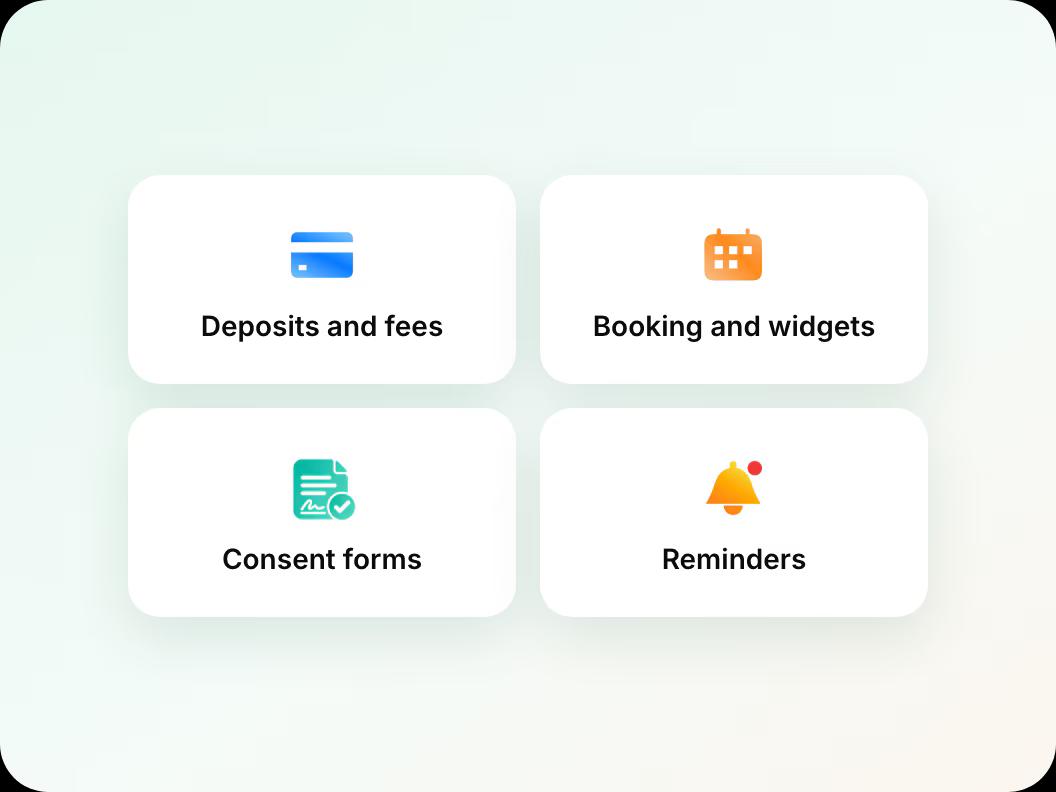
In short: The Workee Help Center has step-by-step set-up guides for med spas, beauty, wellness and dental clinics: taking deposits and no-show fees, adding the booking widget to your website, SMS and WhatsApp reminders, consent forms, memberships and products, importing clients, and running Workee alongside Vagaro.
Updated
Payments, deposits and fees
How to take deposits for bookings
Require a deposit per service and show your policy before the client pays.
How to charge no-show fees
Save the card at booking and charge the fee from the appointment.
Payment links, tips and refunds
Collect a balance by email, set a default tip, refund in full or in part.
Sell memberships and retail products
Memberships, packages and skincare on your own website.
Booking, reminders and forms
Add a booking widget to your website
WordPress, Wix, Squarespace or Webflow, with no client account.
Appointment reminders by SMS and WhatsApp
Confirmations and 24-hour reminders, by text and email.
Send consent forms automatically
Email your form link on a client’s first booking.
HIPAA-compliant online booking
What to collect at booking, and what to keep in your EMR.
Switching or running alongside
Payment integrations
Common questions
- Will someone help me set Workee up?
 Yes. We go through how your clinic books with you during onboarding (consults, deposits, packages, which provider does what) and set the flow up together.
- Do I need to leave my current booking system?No. Workee can run alongside the system you use now, taking bookings on your website and passing them to the calendar your team already works from.
- Which plans include payments?Payments are on Workee Pro and Workee Business, with no Workee transaction fees; Stripe and PayPal charge their usual processing fees. The free Starter plan does not include payments.

