
Import your client list from a spreadsheet
Your client list is the most valuable thing you bring with you. Workee imports your client list from a spreadsheet, maps your columns to its client fields, and has a dedicated import for the Zenoti guest export (XLSX).
Get a Demo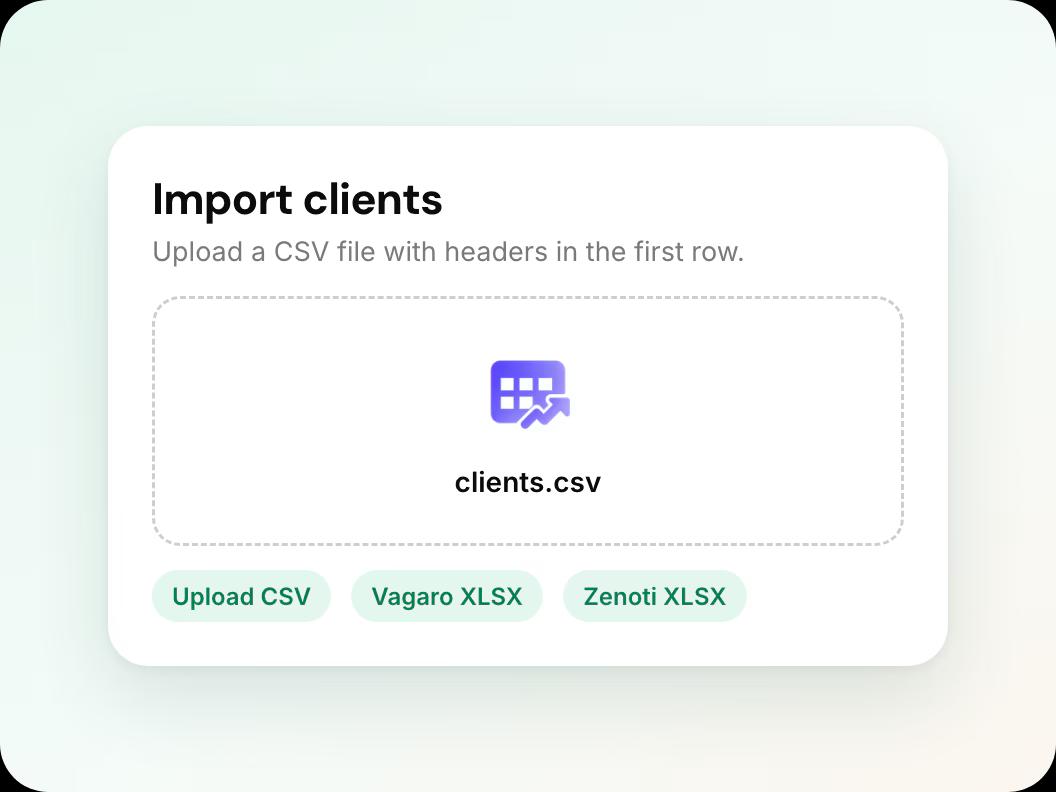
In short: To import clients into Workee, export your client list from your current system as a CSV or spreadsheet, upload it in Workee, match each column (name, phone, email) to a Workee field, and start the import. It runs in the background. Workee also has a dedicated import for the Zenoti guest export (XLSX).
Updated
Before you start

An export from your current system
Download your client list from the system you use now. Our export guides show what each platform lets you take.

A quick clean-up
Remove test entries and obvious duplicates, and check phone numbers include a country code if you serve clients across borders.

Know who agreed to marketing
If your old system recorded marketing consent, keep that column. Only clients who agreed should get campaigns.
Step by step in Workee
In this guide
- Step 1
Export your clients
Download the client list from your current system as a CSV or spreadsheet. If you use Zenoti, export the guest list as XLSX and use the dedicated Zenoti import.
 Step 2
Upload the file in Workee
Open the client import in Workee and upload the file.
 Step 3
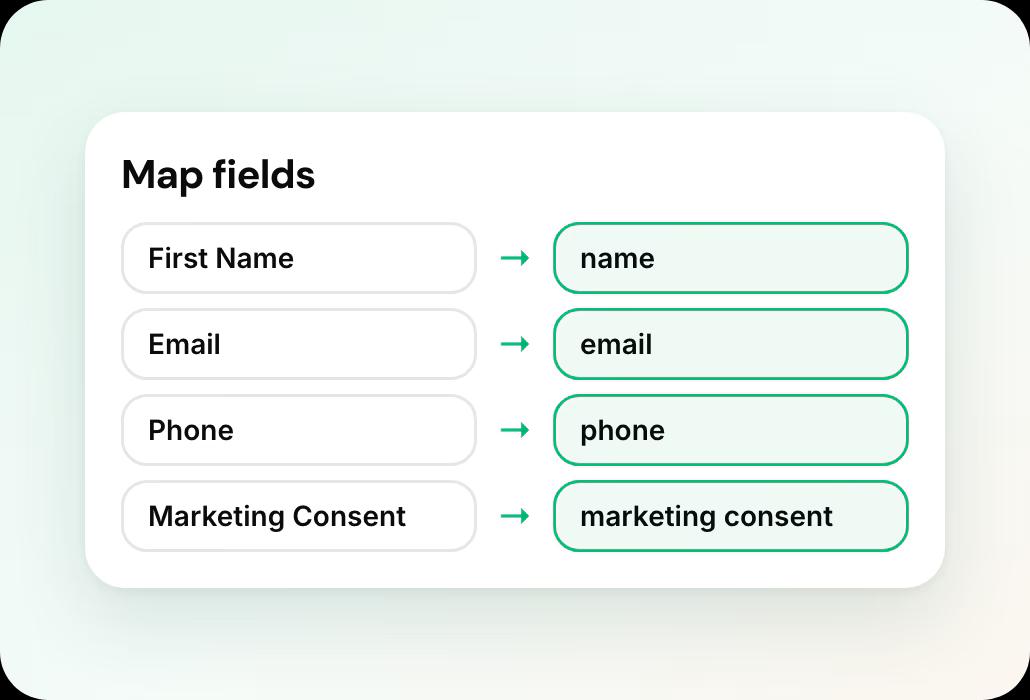
Map your columns
Match each column in your file to a Workee client field, such as first name, last name, phone and email. Columns you do not need can be skipped.
 Step 4
Start the import
Start the import. It runs in the background, so you can keep working while large lists come in.
 Step 5
Spot-check a few clients
Open a handful of client profiles and check names, numbers and emails came through correctly before you send any campaign.
Appointment history and clinical records are not part of a client list import. Charts stay in your EMR or charting system.
What it looks like in Workee
Match your columns
Match each column in your file to a Workee client field. Columns you do not need can be skipped.
 First name, last name, phone and email
- Dedicated imports for Vagaro and Zenoti files
Related guides and pages
Data export guides
What Vagaro, Zenoti, Boulevard and others let you export.
Exporting your data from Zenoti
The guest export Workee imports directly.
Use Workee alongside Vagaro
Start with booking and keep your current system.
Client records and consent forms
History, consent status and marketing consent per client.
Workee vs each platform
Side-by-side comparisons with every price cited.
Workee for med spas
Booking, deposits and follow-up built for med spas.
Common questions
- What file formats can I import?
 A CSV or spreadsheet file with one client per row. Zenoti guest exports in XLSX have their own import.
- Does the import bring appointment history?The import brings your client list: names and contact details. Clinical records and charts stay in your EMR or charting system.
- My columns have different names. Will it work?Yes. You match each column to a Workee field during the import, so the column names in your file do not have to match.
- Can Workee import the list for me?Ask on your demo call. We go through your set-up with you during onboarding.

