
Use Workee alongside Vagaro
You do not have to leave Vagaro to fix online booking. Workee takes bookings on your own website and passes them to the calendar your team already works from.
Get a Demo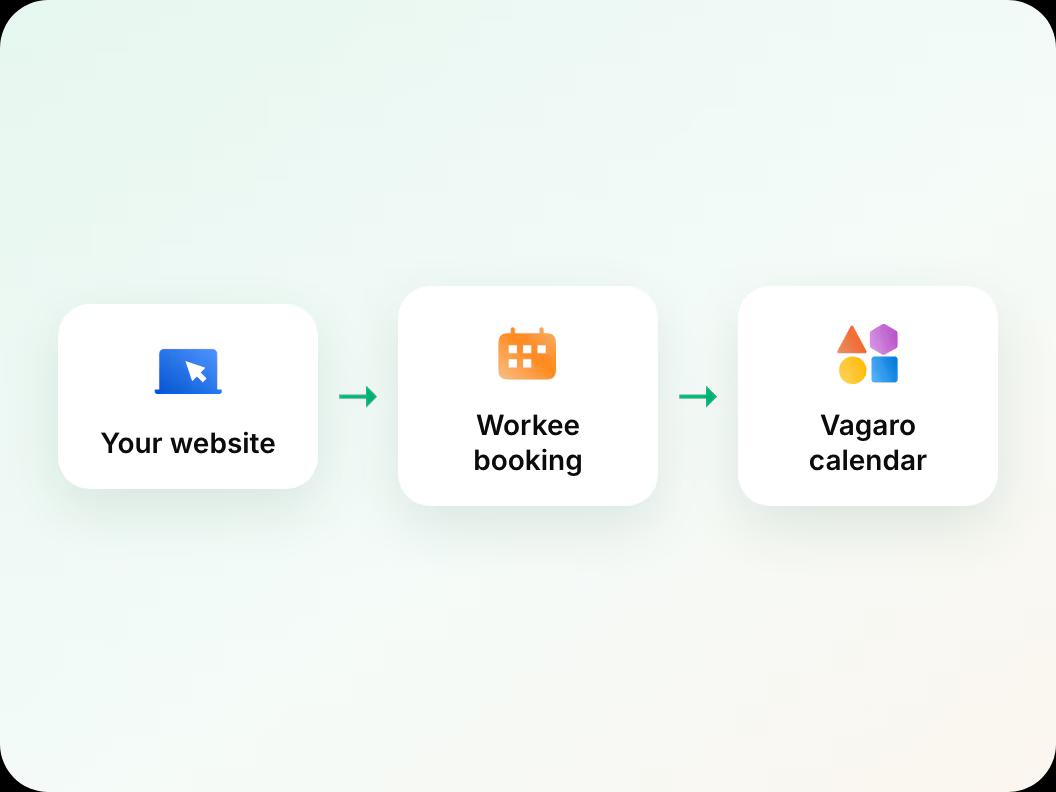
In short: Yes. Workee takes bookings on your own website and passes them to the calendar you already run, and Jenny follows up with clients by text and email, so Vagaro keeps handling the rest. If you later move fully, Workee has its own calendar, payments and client records, and imports your client list from a spreadsheet. To set it up, match your services in Workee, connect the calendar your team works from with our help, add the Workee widget to your website, and run both for one booking cycle before moving your booking link.
Updated
Before you start

What stays in Vagaro
Charting, payroll and in-clinic front desk work stay in Vagaro. So do memberships you sell there: Workee memberships and products do not sync with Vagaro.

What Workee takes on
Booking on your website, deposits and no-show fees, reminders, lead forms, and Jenny’s follow-up and win-backs.

Your service menu
Have your current services, durations, prices and providers to hand, so Workee matches what Vagaro shows.
Step by step in Workee
In this guide
 Step 1
Match your services and providers
Add the services you want bookable online, with the same names, durations and prices as in Vagaro, and set which provider offers each.
 Step 2
Connect the calendar your team works from
We set this up with you during onboarding, so bookings taken by Workee land in the calendar your front desk already uses and no two clients end up in the same chair.
 Step 3
Add the Workee widget to your website
Create a widget for the services you want online and paste its embed code into your site. Clients book in a few steps with no account.
 Step 4
Switch on reminders and Jenny
Turn on SMS and WhatsApp reminders and choose Jenny’s follow-ups. Jenny, an AI front desk that confirms each booking, follows up after visits to rebook, recovers abandoned bookings and wins back clients who have gone quiet, by text and email.
 Step 5
Run both for one booking cycle, then move your link
Watch one full cycle of bookings land correctly. Then point your Instagram bio, Google Business Profile and ads at the Workee booking page.
You can run it this way and stop there. If you later decide to move everything across, the Vagaro export guide shows what you can take with you.
Related guides and pages
Exporting your data from Vagaro
What Vagaro lets you take with you, from its own help center.
Workee vs Vagaro
What each does, with Vagaro’s published prices cited.
Vagaro alternatives
The options to Vagaro for clinics, and when to stay.
Add a booking widget to your website
The embed code, step by step.
Import your client list
Bring clients over from a spreadsheet.
Workee for med spas
Booking, deposits and follow-up built for med spas.
Common questions
- Can I use Workee and Vagaro at the same time?
 Yes. Workee takes bookings on your own website and passes them to the calendar you already run, and Jenny follows up with clients by text and email, so Vagaro keeps handling the rest. If you later move fully, Workee has its own calendar, payments and client records, and imports your client list from a spreadsheet.
- Will Workee memberships show up in Vagaro?No. Memberships and retail products run in Workee only and do not sync with Vagaro. If you sell memberships in Vagaro, keep selling them there.
- Does Workee charge a fee per booking?No. Workee Pro and Business charge no Workee transaction fee on bookings from your website; Stripe and PayPal charge their usual processing fees.
- How long does the set-up take?It depends on your service menu. We go through how your clinic books with you and set the flow up together; book a demo to plan it.

