
Payment links, tips and refunds
Not every payment happens at booking. Here is how to collect a balance by email, set a default tip, and refund a client when plans change, all from the appointment.
Get a Demo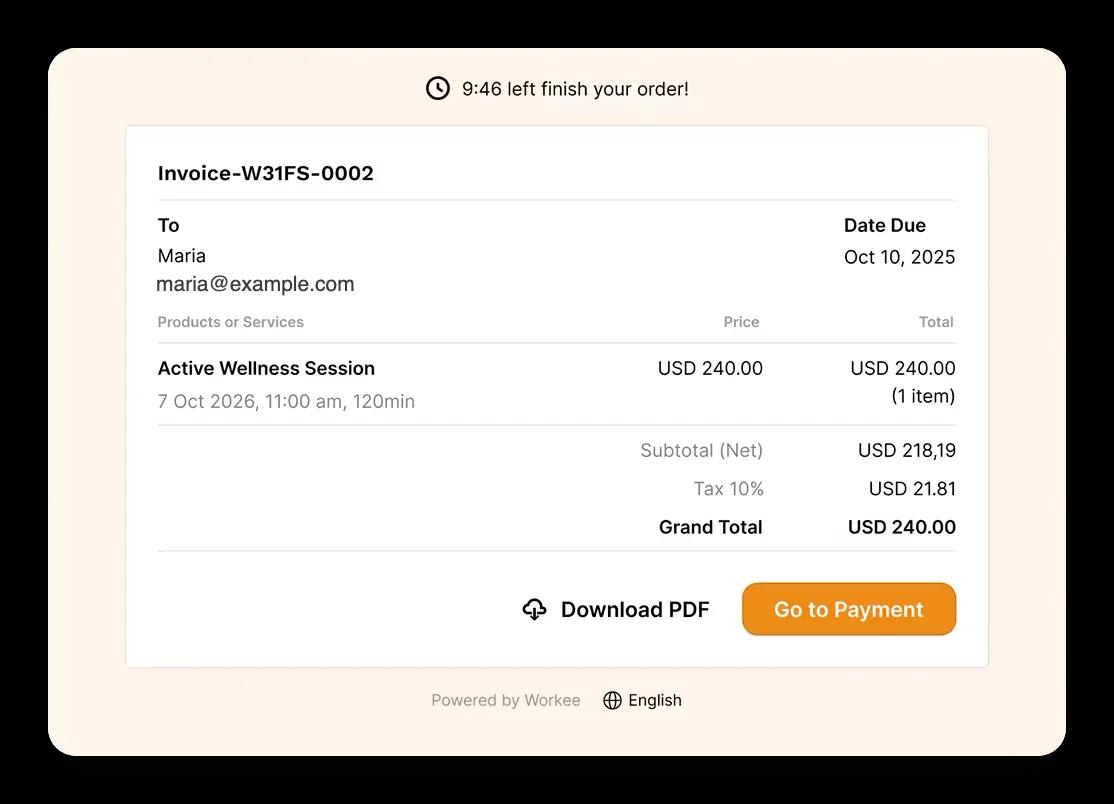
In short: In Workee, open an appointment to charge the saved card, send a payment link by email for any open balance, or refund a payment in full or in part. Tips are offered at checkout with a default amount you choose. Every payment, tip and refund is listed on your Finance page, which you can search and download as a CSV report.
Updated
Before you start

A Pro or Business plan
Payments are on Workee Pro and Workee Business, with no Workee transaction fees; Stripe and PayPal charge their usual processing fees. The free Starter plan does not include payments.

Stripe or PayPal connected
Payment links, tips and refunds go through the payment account you connected.
Your refund policy
Decide when you refund in full, in part or not at all, and keep it in the cancellation policy clients see at booking.
Step by step in Workee
In this guide
 Step 1
Set a default tip
Choose the tip percentage that is preselected at checkout. Clients can still pick another amount, enter their own, or choose no tip.
 Step 2
Send a payment link for a balance
Open the appointment and choose Send payment link. The client gets an email with a link to pay; the link does not expire.
 Step 3
Or charge the saved card
If the client’s card is on file, charge the balance straight from the appointment. If they paid at the desk, mark the visit as paid.
 Step 4
Refund in full or in part
Open the payment and refund all of it or part of it. Workee will not let you refund more than was paid, and the appointment shows it as refunded or partially refunded.
 Step 5
Check your Finance page
Every payment, tip and refund is on the Finance page. Search it to find a payment, or download a CSV report for your accountant.
Clients can see their invoices, download them as PDF, and find paid invoices in their client portal.
What it looks like in Workee
Everything from the appointment
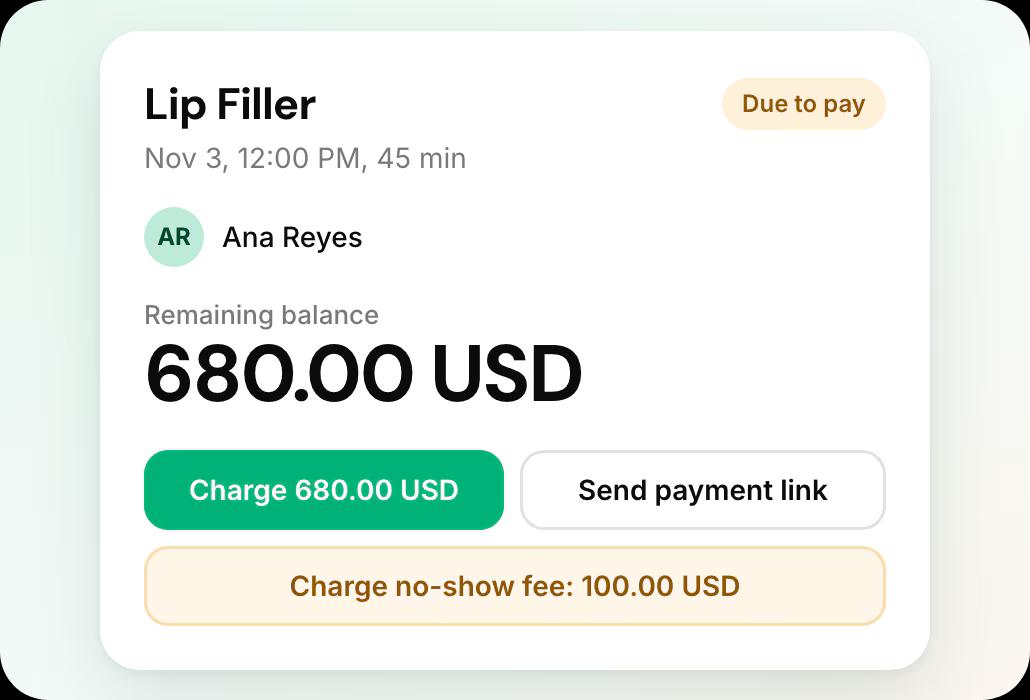
Charge the total, send a payment link or charge a no-show fee from the same screen.
 Service and tip shown separately
- Payment status at the top
Related guides and pages
How to take deposits
Collect part of the price when the client books.
How to charge no-show fees
Charge the saved card when a slot sits empty.
Finance and reporting
Payments, tips, refunds and invoices in one list.
Deposits, no-show fees and payments
Everything Workee does with money, on one page.
Workee and Stripe
Card payments, deposits, cards on file and no-show fees.
Workee and PayPal
Let clients pay with PayPal when they book.
Common questions
- Do payment links expire?
 No. The client can pay from the link whenever they open it.
- Can I give a partial refund?Yes. Refund any amount up to what the client paid; the payment then shows as partially refunded.
- Do tips go to my account?Tips are paid with the service through your connected Stripe or PayPal account and listed on your Finance page.
- Can I export payments for my accountant?Yes. Download your Finance report as a CSV file.

