
Workee and Stripe for clinic payments
Connect your own Stripe account and money from bookings goes straight to it: deposits at booking, the balance after the visit, and a no-show fee when a slot sits empty.
Get a Demo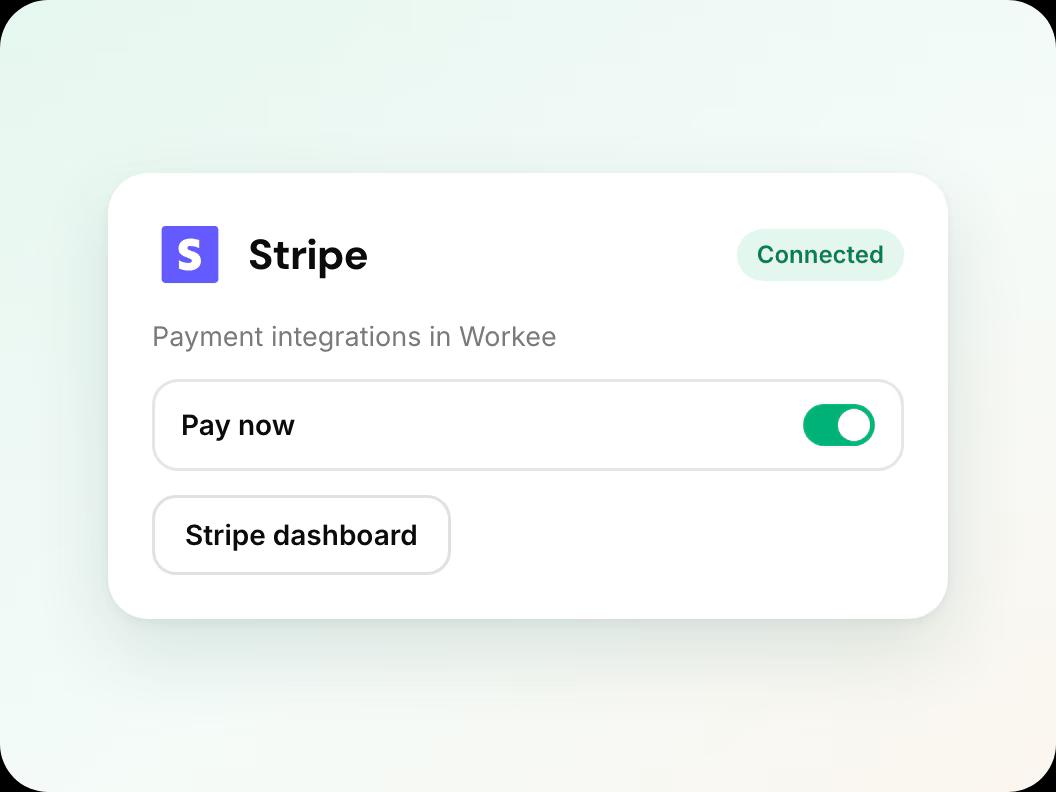
In short: Workee connects to your own Stripe account so clinics can take card payments and deposits at booking, save a card on file, charge no-show fees, send payment links, collect tips and refund in full or in part. Stripe can also offer Klarna, Afterpay and Affirm at checkout. Stripe payments are on Workee Pro and Business with no Workee transaction fees; Stripe charges its usual processing fees.
Updated
What you can do with Stripe

Deposits at booking
Require a deposit per service, paid by card while the client books on your website.

Cards on file and no-show fees
The client’s card is saved when they book, so you can charge the balance or a no-show fee later.

Payment links and tips
Email a payment link for any open balance, and offer tips at checkout with a default you choose.

Refunds with receipts
Refund in full or in part from the appointment. Stripe receipts are kept for every charge and refund.

Pay later options
Through Stripe, clients can also pay with Klarna, Afterpay or Affirm at checkout.

HIPAA and PCI compliant
Card details are entered on the Stripe checkout. Workee is HIPAA and PCI compliant from booking to payment.
Connect Stripe in four steps
In this guide
- Step 1
Open payment settings in Workee
In Workee, open your payment settings and choose Stripe.
 Step 2
Sign in to Stripe or create an account
You are sent to Stripe to sign in, or to create an account with your clinic’s business and bank details.
 Step 3
Come back to Workee
Once Stripe has verified the account, Workee emails you to confirm it is connected.
 Step 4
Turn on deposits and no-show fees
Add deposits and no-show fees to the services that need them, then book a test appointment and refund it.
What it looks like in Workee
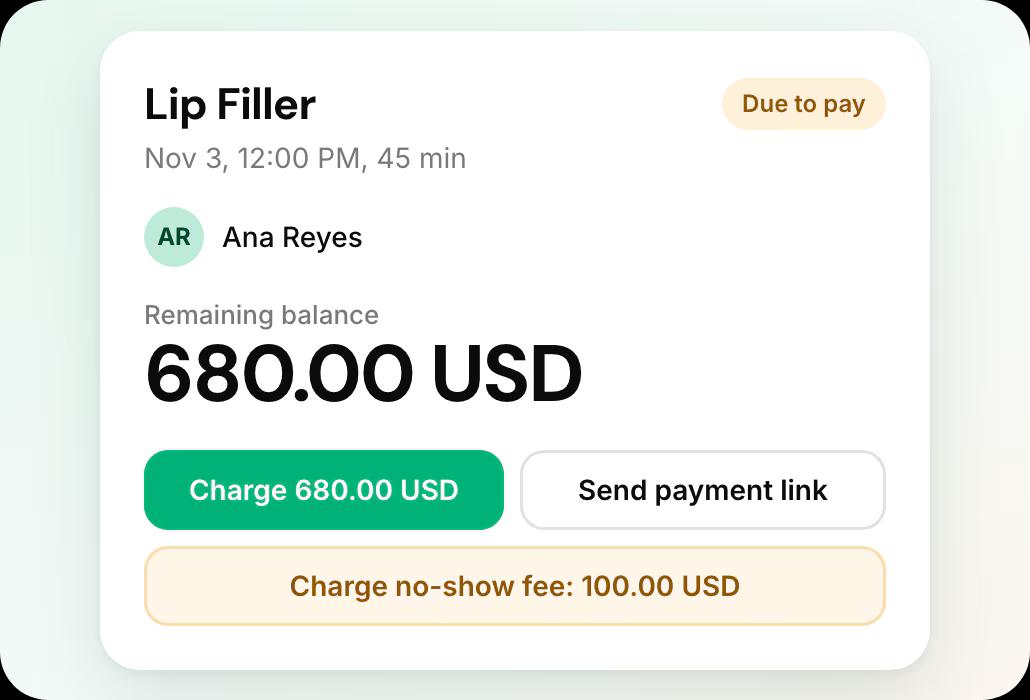
Payment: Stripe, on every appointment
See what was paid, charge the saved card, send a payment link or charge a no-show fee.
 Service and tip shown separately
- One confirmation before a no-show charge
Checkout with tips
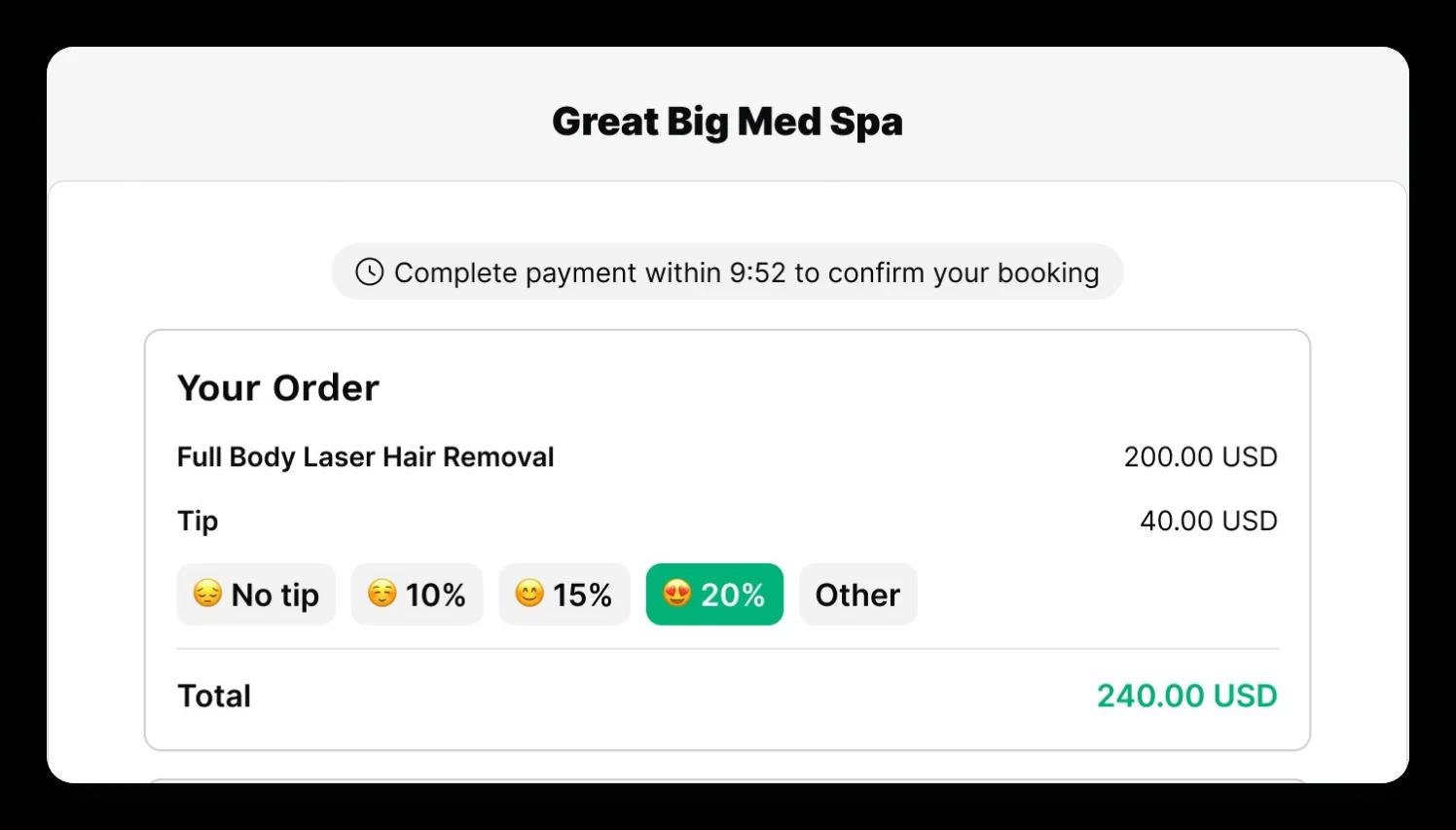
The client sees the treatment, the tip options and the total, with a timer to finish paying.
- Default tip you choose
- Your policy shown before payment
Related guides and pages
How to take deposits
Set a deposit per service, step by step.
How to charge no-show fees
Save the card at booking and charge it later.
Payment links, tips and refunds
Collect balances and refund from the appointment.
Workee and PayPal
Let clients pay with PayPal when they book.
Deposits, no-show fees and payments
Everything Workee does with money, on one page.
Integrations
Stripe, PayPal, Zoom, SMS, WhatsApp and your website builder.
Workee and Stripe: common questions
- Does Workee charge a fee on Stripe payments?
 Payments are on Workee Pro and Workee Business, with no Workee transaction fees; Stripe and PayPal charge their usual processing fees. The free Starter plan does not include payments.
- Can I use my existing Stripe account?Yes. You sign in to Stripe when you connect it, so you can use the account you already have or create a new one.
- Can I offer Stripe and PayPal together?Yes. Clients can pay by card through Stripe or with PayPal. Saving a card and charging a no-show fee later run through Stripe.
- Can clients pay in instalments?Through Stripe, clients can choose Klarna, Afterpay or Affirm at checkout.

